Text Field
A text field lets the user enter one line of text: a name, an email address, a search term. It handles the whole editing interaction for you. A click places the caret, a drag selects, a double click selects a word and a triple click selects everything. The arrow keys, home, end, backspace and delete work as on the desktop, and select all, copy, cut and paste sit on the usual shortcuts. A value wider than the field scrolls horizontally and keeps the caret in view.
The field is a declaration over a ui.TextEditor, which holds the text, the caret and the selection. Use a text
field for short free-form input. For a choice out of a few fixed values use a
Segmented Control, for on/off a Toggle.
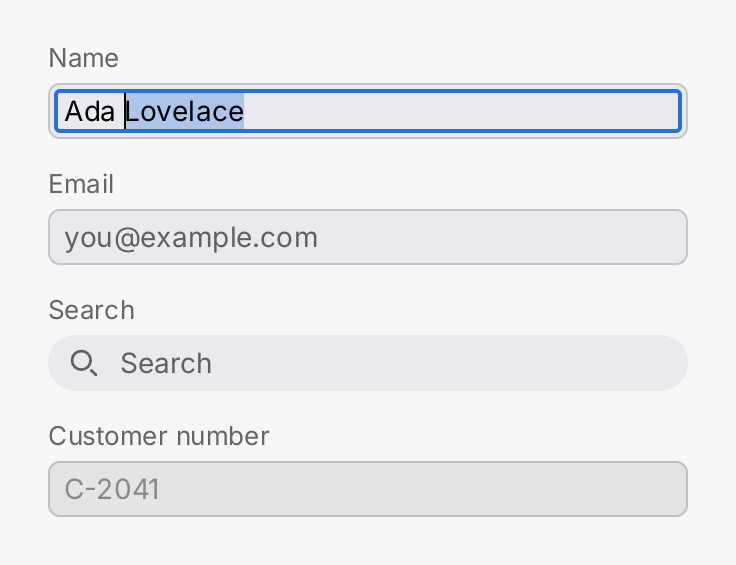
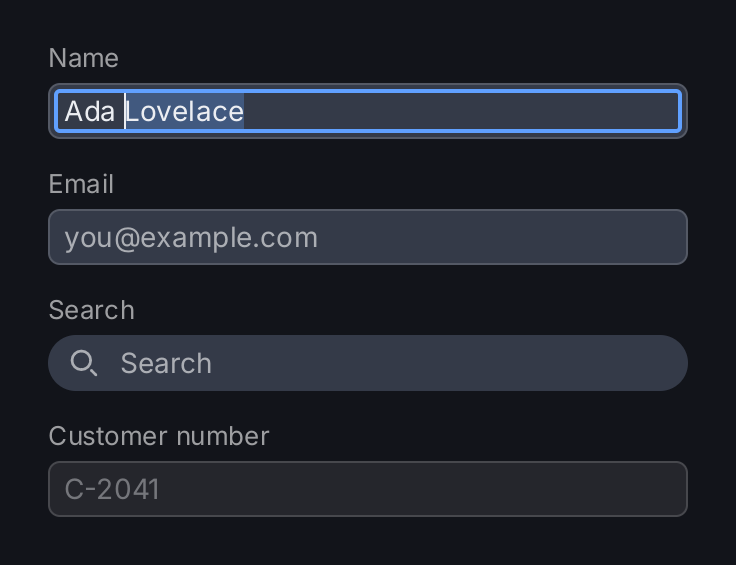
// An editor holds the text, the caret and the selection, so they
// survive the rebuild every keystroke causes.
name := ui.Editor(ctx, "name", "Ada Lovelace")
email := ui.Editor(ctx, "email", "")
search := ui.Editor(ctx, "search", "")
customer := ui.Editor(ctx, "customer", "C-2041")
query := ctx.State("query", "")

labeled := func(title string, field gift.View) gift.View {
	return ui.VStack(
		ui.Text(title).FontSize(13).Foreground(ui.ColorSecondaryLabel),
		field,
	).Gap(4).Align(geom.Alignment{X: 0, Y: 0})
}

// A search box: a borderless field next to an icon, in a rounded
// pill. Enter runs OnSubmit with the current text.
searchBox := ui.HStack(
	ui.Icon(outline.Search).Size(16).Foreground(ui.ColorSecondaryLabel),
	ui.TextField(search).
		Placeholder("Search").
		Background(ui.ColorClear).
		Border(ui.Border{}).
		FocusRing(ui.Border{}).
		OnSubmit(query.Set).
		Flex(1),
).Gap(2).Align(geom.Center).
	PaddingInsets(geom.Insets{Left: 10, Right: 4}).
	Background(ui.ColorControl).
	CornerRadius(14)

return ui.VStack(
	labeled("Name", ui.TextField(name).Placeholder("Your name")),
	labeled("Email", ui.TextField(email).Placeholder("you@example.com")),
	labeled("Search", searchBox),
	labeled("Customer number", ui.TextField(customer).Disabled(true)),
).Gap(14).Frame(320, geom.Unbounded())
Full demo on GitHub ↗
· run it with go run ./docs/gallery -demo text-field
Usage
Editor and field
ui.TextField takes a *ui.TextEditor. Your component rebuilds whenever state it reads changes, often while the
user types, and a view does not survive a rebuild. So the caret and the selection cannot live in the view. They live
in the editor, which your application keeps. Inside a
component, ui.Editor(ctx, name, initial) creates one on the first build and returns the same one afterwards. It
is ordinary component state underneath, so it goes away with its component:
name := ui.Editor(ctx, "name", "")
return ui.VStack(
	ui.TextField(name).Placeholder("Your name"),
	ui.Button(ui.Text("Save"), func() { save(name.Text()) }),
)
initial is only used on the first build, like the initial value of any other state. Outside a component, create
the editor with ui.NewTextEditor(s) and keep it yourself, for example in a package variable. It starts with the
caret after the last character and nothing selected.
One editor belongs to one field. Two mounted fields over the same editor panic, because an editor has a single caret, selection and scroll offset. A nil editor panics too.
Reading and writing the value
Text returns the current value at any time, which is all a button that submits a form needs, as in the snippet
above. SetText replaces the value, moves the caret to the end and clears the selection. Use it to reset a form
or to load a record.
Typing repaints the field but does not rebuild your component. A view that shows the value somewhere else, or a
button that depends on it, needs state. Bind the field to a gift.State with Bind: every edit writes the state,
and a value you write to the state replaces the text in the field:
query := ctx.State("query", "")
field := ui.TextField(ui.Editor(ctx, "query-editor", "")).
	Placeholder("Search").
	Bind(query.Binding())
return ui.VStack(
	field,
	ui.Text("Results for " + ctx.Read(query)),
	ui.Button(ui.Text("Clear"), func() { query.Set("") }),
)
The field still needs its editor; the state holds the value and the editor holds the caret.
OnChange runs after every change with the new value, one call per keystroke, without a debounce. OnSubmit runs
when the user presses enter, with the current value. Both compose with Bind; the binding is written first. There
is no commit on blur: the value the callbacks see is always the value on the screen.
Placeholder and label
Placeholder sets the text shown while the field is empty, in ui.ColorSecondaryLabel unless PlaceholderColor
says otherwise. It also serves as the accessible name of the field, which is how tests and accessibility tools
find it. Label sets a different accessible name; it is never drawn. A field with a visible title above it, as in
the demo, can repeat that title in Label:
ui.TextField(email).Placeholder("you@example.com").Label("Email")Size
A field is one line tall: the line height of its font plus the padding, 5 points at the top and bottom and 8 at the
sides by default. FontSize changes the line, and with it the height. Padding and PaddingInsets replace the
padding, and MinHeight gives a taller field with the line centered in it, for example
MinHeight(ui.ControlHitTarget) on a touch screen.
A field does not grow with its text. It takes the width it is offered, and where the width is unbounded, as for an
inflexible child of an HStack, it is 180 points wide. Frame, MinWidth and MaxWidth set another width;
Flex(1) lets it fill the rest of a row:
ui.HStack(
	ui.TextField(city).Placeholder("City").OnSubmit(add).Flex(1),
	ui.Button(ui.Text("Add"), func() { add(city.Text()) }),
).Gap(8)
Next to other views in an HStack, the field reports the baseline of its text, so AlignBaseline lines it up with
a label in front of it.
Look
Without styling, a field uses the theme: the face is ui.ColorControl with a one point hairline in
ui.ColorSeparator and a corner radius of 6. The text is ui.ColorLabel, the caret has the color of the text, and
the selection is the accent at 30 percent. Background, Border, CornerRadius and Shadow replace the box, and
Foreground, CaretColor and SelectionColor the colors inside it. Font sets a font for this field only.
While the field holds the keyboard focus and the focus is visible, it draws a two point ring in ui.ColorAccent.
FocusRing replaces it, and a zero width border removes it. The search box of the demo uses that: a field with
ui.ColorClear as background, ui.Border{} as border and no focus ring, inside a rounded stack that carries the
face and the icon.
The text is always clipped to the field, because it scrolls inside it. Clip(false) panics.
Focus and keyboard
A click or a tap on the field takes the focus, and so does tab. A field that takes the focus scrolls itself into
view if it sits in a scroll view. A drag that leaves the press more vertically than horizontally belongs to that
scroll view, so a column of fields on a touch screen still scrolls. Disabled(true) takes the field out of input: it is skipped by the focus order,
receives no events, shows no caret and draws quieter text on ui.ColorControlDisabled.
Inside a focused field:
| Keys | Action |
|---|---|
| left, right | move the caret, with shift extend the selection |
| left, right with the word modifier | move by words: option on macOS, control elsewhere |
| left, right with command on macOS | go to the start or the end of the line |
| home, end, up, down | go to the start or the end of the line |
| backspace, delete | delete before or after the caret, or the selection |
| shortcut modifier with A, C, X, V | select all, copy, cut, paste: command on macOS, control elsewhere |
| enter | run OnSubmit |
Shift extends the selection with every motion. Outside macOS the word modifier and the shortcut modifier are both
control, and control with an arrow moves by words. The modifiers are the variables gift.WordModifier and
gift.ShortcutModifier; assign to them before the first frame if your keyboard disagrees with the operating system.
The shortcut letters are physical key positions of a US keyboard, so on other layouts they sit where the US keys would be. There is no undo, and no multi-line input: enter submits, and pasted text ends at its first line break. The field is not an input method for CJK composition, but umlauts, accents, AltGr and dead keys arrive as ordinary characters and are inserted like any other.
Clipboard
By default, copy and paste go through ui.MemoryClipboard, which only exchanges text inside your process. To
exchange text with other programs, import the clipboard package for its side effect:
import _ "github.com/worldiety/gift/clipboard"It supports macOS and Linux with X11 and needs no cgo. ui.SetClipboard installs any other implementation of
ui.Clipboard; call it before the first frame. See the
package documentation for the size cap and the platform
details.
On-screen keyboard
A kiosk without a hardware keyboard needs gift’s own on-screen keyboard. Turn it on with ui.SetOnScreenKeyboard
and place ui.OnScreenKeyboard() once, as a direct child of the window, aligned to the bottom:
ui.SetOnScreenKeyboard(nil, true) // in main, next to ui.SetDefaultFont

app := gift.New(gift.Options{Root: func(ctx *gift.Context) gift.View {
	return ui.Window(
		form(ctx),
		ui.OnScreenKeyboard(),
	).Align(geom.Bottom)
}})
With the switch on, a field asks for the keyboard when it gains the focus and dismisses it when it loses it, and the window lays the form out above the keyboard while it shows. The switch is off by default, because gift cannot tell a kiosk from a desktop. Passing the app instead of nil rebuilds the window right away. See Keyboard for the keyboard itself.
API
Constructors
| Constructor | Description |
|---|---|
func TextField(ed *TextEditor) TextFieldView | TextField returns a field editing ed. |
Methods
| Method | Description |
|---|---|
Bind(b gift.Binding[string]) TextFieldView | Bind connects the field to a gift.State holding the text, in both directions: every edit writes the state, and a value written to the state from anywhere else replaces the document. |
CaretColor(c Color) TextFieldView | CaretColor sets the colour of the caret. |
Disabled(b bool) TextFieldView | Disabled takes the field out of input: it is skipped by the focus order, receives no events, shows no caret and draws in a quieter colour on the disabled control face. |
FocusRing(b Border) TextFieldView | FocusRing sets the border drawn on top of the field while it holds the keyboard focus. |
Font(f Font) TextFieldView | Font sets the font the text is shaped and drawn with, overriding SetDefaultFont for this field only. |
FontSize(s float32) TextFieldView | FontSize sets the em size in pixels. |
Foreground(c Color) TextFieldView | Foreground sets the colour of the text. |
Label(s string) TextFieldView | Label sets the accessible name of the field, overriding the placeholder for that purpose. |
OnChange(f func(string)) TextFieldView | OnChange registers a callback that runs after every change to the text, with the new value. |
OnSubmit(f func(string)) TextFieldView | OnSubmit registers a callback that runs when the user presses enter in the field, with the current value. |
Placeholder(s string) TextFieldView | Placeholder sets the text shown while the field is empty, in ColorSecondaryLabel unless TextFieldView.PlaceholderColor says otherwise. |
PlaceholderColor(c Color) TextFieldView | PlaceholderColor sets the colour of the placeholder text. |
SelectionColor(c Color) TextFieldView | SelectionColor sets the highlight drawn behind selected text. |
Common modifiers: Background, Border, Clip, CornerRadius, Flex, Frame, Key, MaxHeight, MaxWidth, MinHeight, MinWidth, Padding, PaddingInsets, Shadow. See Modifiers.
Constructors
| Constructor | Description |
|---|---|
func Editor(ctx *gift.Context, name, initial string) *TextEditor | Editor returns the editor named name inside the component instance ctx belongs to, creating it with initial on first use. |
func NewTextEditor(s string) *TextEditor | NewTextEditor returns an editor holding s, with the caret after the last character and nothing selected. |
Methods
| Method | Description |
|---|---|
Caret() int | Caret returns the byte offset the next character would be inserted at. |
DeleteBackward() bool | DeleteBackward removes the selection if there is one, and otherwise the rune before the caret. |
DeleteForward() bool | DeleteForward removes the selection if there is one, and otherwise the rune after the caret. |
DeleteSelection() bool | DeleteSelection removes the selected text and reports whether there was any. |
HasSelection() bool | HasSelection reports whether any text is selected. |
Insert(s string) bool | Insert replaces the selection with s and leaves the caret after it. |
InsertRune(r rune) bool | InsertRune is TextEditor.Insert for one character, without building a string for it. |
Len() int | Len returns the length of the text in bytes. |
MoveCaret(off int, extend bool) | MoveCaret puts the caret at off. |
MoveEnd(extend bool) | MoveEnd is TextEditor.MoveHome at the other end. |
MoveHome(extend bool) | MoveHome and MoveEnd move the caret to the ends of the document. |
MoveLeft(extend bool) | MoveLeft and MoveRight move the caret by one rune. |
MoveRight(extend bool) | MoveRight is TextEditor.MoveLeft in the other direction. |
MoveWordLeft(extend bool) | MoveWordLeft and MoveWordRight move the caret to the near edge of the adjacent word; see [runeClass] for what a word is here. |
MoveWordRight(extend bool) | MoveWordRight is TextEditor.MoveWordLeft in the other direction. |
SelectAll() | SelectAll selects the whole document and leaves the caret at the end. |
SelectWordAt(off int) | SelectWordAt selects the run of text around off, where a run is what [runeClass] says it is: a word, a stretch of whitespace, or a stretch of punctuation. |
SelectedText() string | SelectedText returns the selected text, which is "" when nothing is selected. |
Selection() (int, int) | Selection returns the selected byte range as the ordered pair start, end. |
SetCaret(off int) | SetCaret moves the caret to off and clears the selection. |
SetSelection(a, b int) | SetSelection selects the byte range from a to b and puts the caret at b, so that a following shifted arrow extends from the end the caller named last. |
SetText(s string) | SetText replaces the whole document, puts the caret at the end and clears the selection. |
Text() string | Text returns the current contents. |
| Function | Description |
|---|---|
func SetClipboard(c Clipboard) | SetClipboard installs the clipboard implementation for the whole process. |
func SetOnScreenKeyboard(app *gift.App, on bool) | SetOnScreenKeyboard turns gift’s own on-screen keyboard on or off for the whole process and asks app to rebuild, which is what makes the change visible. |
Related
- Keyboard, the on-screen keyboard of a kiosk
- Button, which usually submits what a field holds
- Segmented Control and Toggle, controls for fixed values
- Scroll View, for a form taller than the window
- State, Input and Focus, Text and Fonts and Kiosks
- The example kitchen sink, whose form tab has a field with the on-screen keyboard