Alert
ui.Alert is a small card with a title, a message and a row of choices. Use it when the user has to
answer a question before going on, such as confirming that a file gets deleted or deciding what happens to
unsaved changes.
An alert is an ordinary view and knows nothing about being modal. You present it with Modal, which dims the screen behind it, blocks its input and keeps the keyboard focus inside the alert.
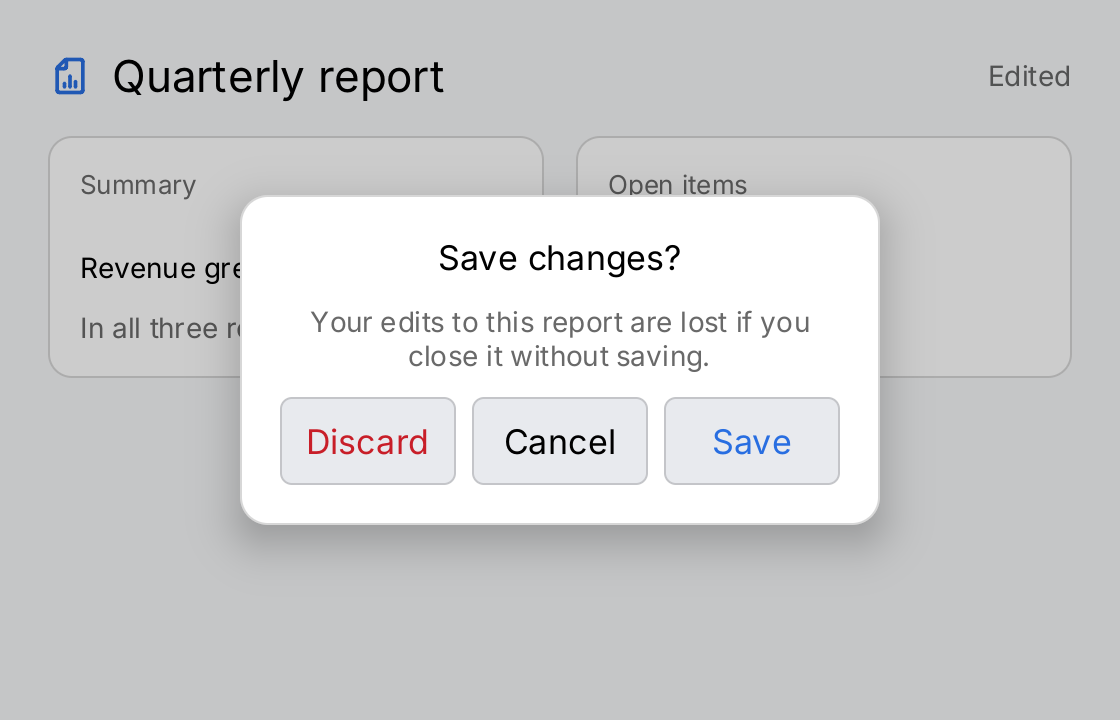
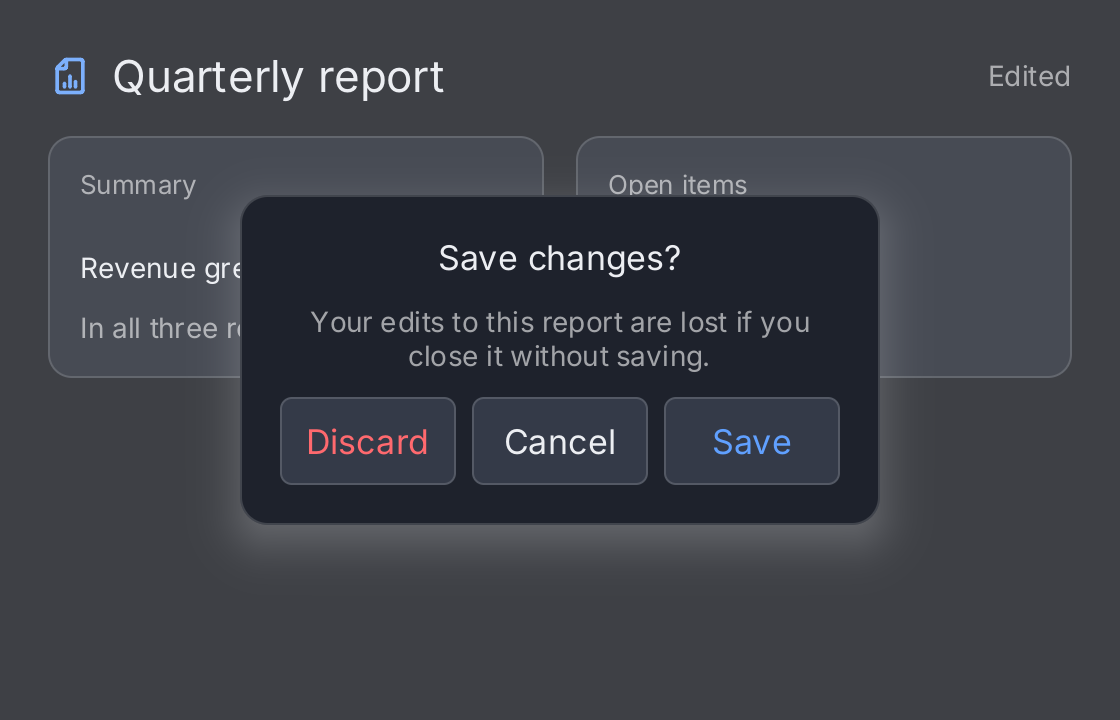
open := ctx.State("open", true)
closeAlert := func() { open.Set(false) }

// The screen behind the alert: an editor with unsaved changes.
screen := ui.VStack(
	ui.HStack(
		ui.Icon(outline.FileChartBar).Size(22).Foreground(ui.ColorAccent),
		ui.Text("Quarterly report").FontSize(22),
		ui.Spacer(),
		ui.Text("Edited").Foreground(ui.ColorSecondaryLabel),
	).Gap(10).Align(geom.Center),
	ui.HStack(
		ui.Card(
			ui.Text("Revenue grew"),
			ui.Text("In all three regions").Foreground(ui.ColorSecondaryLabel),
		).Header("Summary").Flex(1),
		ui.Card(
			ui.Text("October figures"),
			ui.Text("Due on Friday").Foreground(ui.ColorSecondaryLabel),
		).Header("Open items").Flex(1),
	).Gap(16),
	ui.Spacer(),
).Gap(16).Padding(24)

// One button of each role: the cancel choice in the label color, the
// destructive one in red and the ordinary action in the accent color.
alert := ui.Alert(
	"Save changes?",
	"Your edits to this report are lost if you close it without saving.",
	ui.AlertDestructive("Discard", closeAlert),
	ui.AlertCancel("Cancel", closeAlert),
	ui.AlertAction("Save", closeAlert),
)

// Modal presents the alert over the screen: it dims the screen and
// blocks its input. Presented keeps the alert mounted, so it animates
// both in and out.
return ui.Modal(screen, alert).Presented(ctx.Read(open))
Full demo on GitHub ↗
· run it with go run ./docs/gallery -demo alert
Usage
Present it with Modal. ui.Modal(screen, alert) draws the alert centered over screen, with a scrim
between the two. The scrim swallows every tap and wheel event, so nothing behind the alert can be reached. Tab
moves only between the alert’s buttons. Modal must get a bounded size in both directions, so put it at the root
of your window, as in the demo. See Modal for the details.
Nil is the closed state. Build the alert from your own state and pass nil while there is nothing to ask:
confirm := ctx.State("confirm", false)

var alert gift.View
if ctx.Read(confirm) {
	alert = ui.Alert("Delete the file?", "This cannot be undone.",
		ui.AlertCancel("Cancel", func() { confirm.Set(false) }),
		ui.AlertDestructive("Delete", func() {
			deleteFile()
			confirm.Set(false)
		}),
	)
}
return ui.Modal(screen, alert)
Presented animates both ways. A nil modal unmounts the alert, so it slides in when it opens and simply
disappears when it closes. To animate the dismissal too, pass the alert all the time and say whether it shows
with Presented, as the demo does:
return ui.Modal(screen, alert).Presented(ctx.Read(open))The alert then stays mounted and hidden while it is closed.
A button does not close the alert. Each button calls its function and nothing else. Closing the alert is
your job: set the state that presents it, as every callback in the demo does. A tap on the scrim does nothing,
unless you pass a function to ModalView.OnDismiss.
The roles set the color. All three constructors take a title and a function. They differ only in the color of the title:
| Constructor | Color | Use for |
|---|---|---|
AlertAction | ColorAccent | the ordinary choice, such as “Save” or “OK” |
AlertCancel | ColorLabel | the choice that backs out, such as “Cancel” |
AlertDestructive | ColorDanger | the choice that destroys something, such as “Delete” |
The buttons are laid out in one row in the order you pass them, and share its width equally. Each one is at
least ui.ControlHitTarget tall and wide, and its title is its accessible name. The row never wraps into a
column: keep the titles to a word or two, and use at most three buttons.
The card has a fixed size. The card is 320 logical pixels wide, whatever the window size, and as tall as its
content. The title and the message are centered; the message wraps. The colors are semantic: ColorSurface for
the card, ColorLabel for the title and ColorSecondaryLabel for the message, so the alert follows the
theme. An alert has no style of its own. For a different look, hand any other view
to Modal.
Title, message and buttons are optional. An empty title or message draws nothing and takes no space. An alert without buttons is a card the user cannot answer, for example while an update runs:
var alert gift.View
if !done {
	alert = ui.Alert("Updating", "The device restarts when the update is installed.")
}
return ui.Modal(screen, alert)
API
Constructors
| Constructor | Description |
|---|---|
func Alert(title, message string, buttons ...AlertButton) AlertView | Alert returns an alert card. |
Common modifiers: Flex, Key. See Modifiers.
Constructors
| Constructor | Description |
|---|---|
func AlertAction(title string, fn func()) AlertButton | AlertAction is the ordinary choice of an alert, drawn in ColorAccent. |
func AlertCancel(title string, fn func()) AlertButton | AlertCancel is the choice that backs out, drawn in ColorLabel. |
func AlertDestructive(title string, fn func()) AlertButton | AlertDestructive is the choice that destroys something, drawn in ColorDanger. |
Related
- Modal: presents the alert with a scrim and a focus trap
- Sheet: a panel that slides in from an edge
- Button: the view each choice is made of
- Card: a raised surface on the page
- Colors:
ColorAccent,ColorDangerand the other semantic colors - State: where the open flag of an alert lives
- Navigation: how Modal fits next to TabBar and NavigationStack
- Input and focus: the focus trap of a modal
- Animation: the transition of
Presented