Keyboard
ui.OnScreenKeyboard is gift’s own on-screen keyboard for touch kiosks without a hardware keyboard. It has a
German layout with umlauts and ß, a digit row, a symbol page, shift, space, backspace, enter and a key that puts
it away. Its keys deliver the same input as a physical keyboard, so a text field cannot tell them apart.
You place the keyboard once, in the window, and turn it on for the whole process. From then on it comes up when a text field takes the focus and goes away when the field loses it. While it shows, the rest of the window is laid out in the space above it.
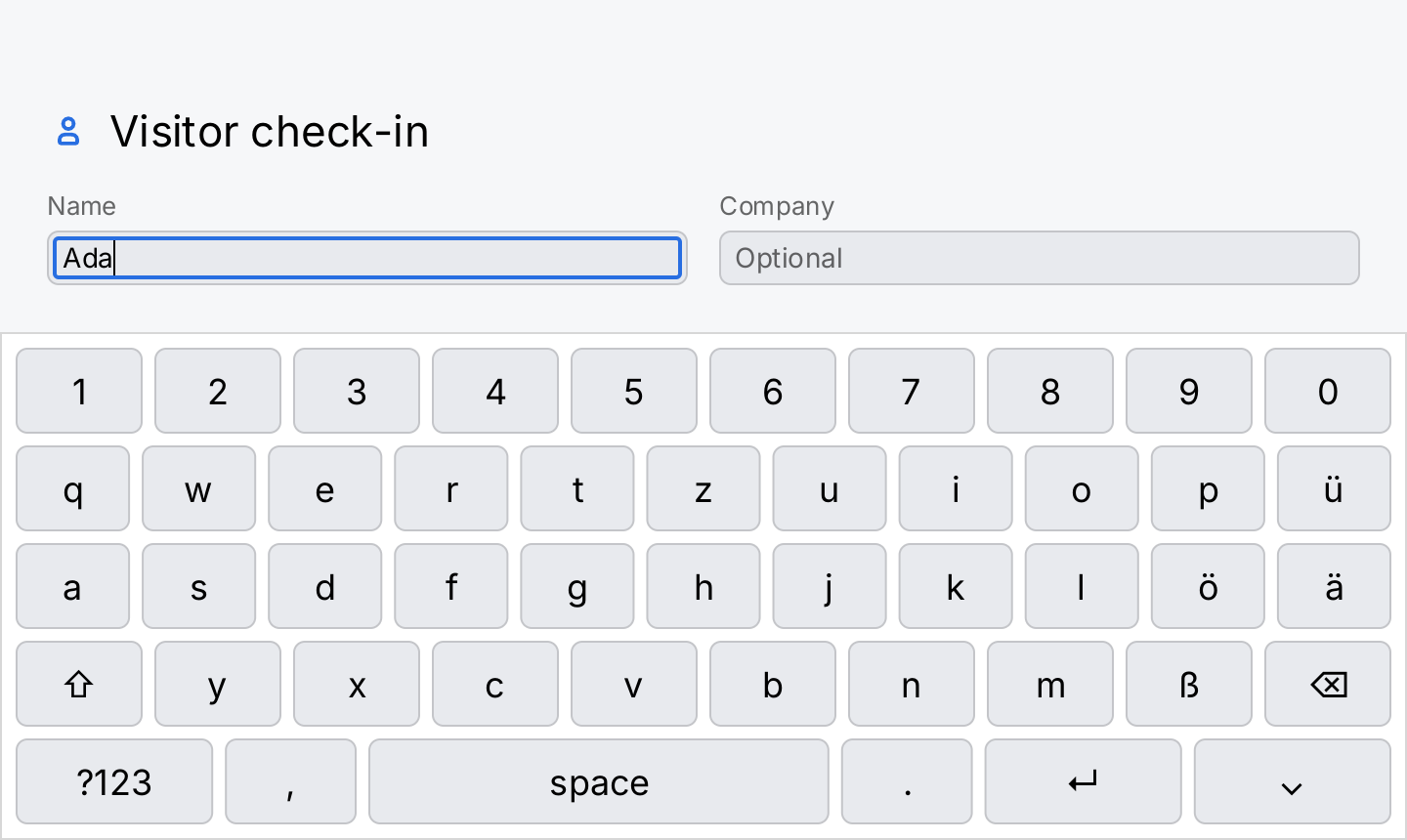
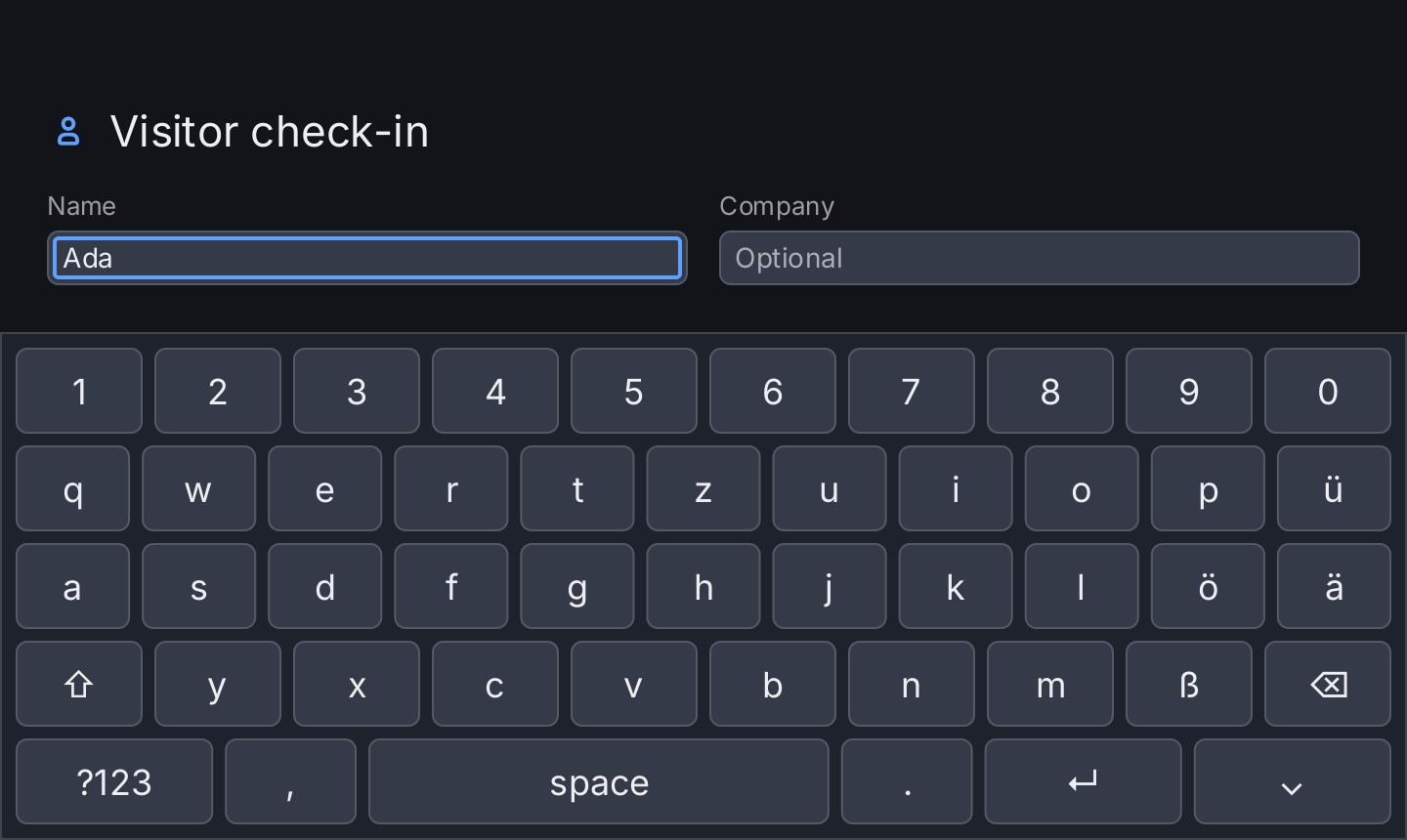
// In main: ui.SetOnScreenKeyboard(nil, true). With the switch on, a text
// field asks for the keyboard when it takes the focus.
name := ui.Editor(ctx, "name", "")
company := ui.Editor(ctx, "company", "")

labeled := func(title string, field gift.View) ui.Stack {
	return ui.VStack(
		ui.Text(title).FontSize(13).Foreground(ui.ColorSecondaryLabel),
		field,
	).Gap(4).Align(geom.Alignment{X: 0, Y: 0})
}

form := ui.VStack(
	ui.HStack(
		ui.Icon(outline.User).Size(22).Foreground(ui.ColorAccent),
		ui.Text("Visitor check-in").FontSize(22),
	).Gap(10).Align(geom.Center),
	ui.HStack(
		labeled("Name", ui.TextField(name).Placeholder("Your name")).Flex(1),
		labeled("Company", ui.TextField(company).Placeholder("Optional")).Flex(1),
	).Gap(16),
).Gap(16).Padding(24)

// The keyboard is a direct child of the window, aligned to the bottom.
// While it shows, the form is laid out in the space above it.
return ui.Window(form, ui.OnScreenKeyboard()).Align(geom.Bottom)
Full demo on GitHub ↗
· run it with go run ./docs/gallery -demo keyboard
Usage
Turn it on in main. The keyboard is off by default, because gift cannot tell a kiosk from a desktop: on a Raspberry Pi under X11 a touchscreen reports itself as a mouse. Say it once, before the app runs:
func main() {
	ui.SetOnScreenKeyboard(nil, true)

	app := gift.New(gift.Options{Root: screen})
	// ...
}
The first argument is the *gift.App to rebuild. Pass nil in main, where nothing is on screen yet. If you
flip the switch while the app runs, pass the app so the change shows at once, and call it on the UI goroutine.
ui.OnScreenKeyboardEnabled() reports the current state.
Place it as a direct child of the window. Pass ui.OnScreenKeyboard() as the last child of the
Window and align the window to the bottom:
func screen(ctx *gift.Context) gift.View {
	return ui.Window(form, ui.OnScreenKeyboard()).Align(geom.Bottom)
}
Until the switch is on and a field asks for it, the keyboard draws nothing and takes no space. A ZStack works the same way as a window, because a window is a ZStack.
A focused text field brings it up. With the switch on, a TextField asks for the keyboard when it gains the focus and withdraws the request when it loses it. Moving from one field to the next keeps the keyboard up. Tapping a key does not take the focus away from the field. The keyboard goes away when the user
- taps the key in its bottom right corner,
- taps next to the keyboard on something that cannot take the focus, such as the page or a scroll view,
- moves the focus to a control that is not a text field,
- presses escape on a hardware keyboard.
To put it away from your own code, for example from the action of a “Done” button, call
DismissSoftKeyboard() on the *gift.App that gift.New returned, on the UI goroutine. It blurs the focused
field and reports whether a keyboard was up. A custom view’s event handler calls
ctx.DismissSoftKeyboard() on its *gift.EventContext instead.
The content moves out of the way. While the keyboard shows, the other children of the window are laid out in the part above it. A scroll view gets a shorter viewport, and the focused field is scrolled into view in that viewport. A button pinned to the bottom of the screen stays above the keys. A form that does not fill the window is aligned to the bottom of the free space, as in the screenshot. When the keyboard goes away, the content gets the whole window back. The window’s background still covers the area behind the keyboard.
AvoidKeyboard(false) lets it cover the content. That is right for a screen that must not re-flow while someone types, such as a full screen camera preview with one field on top. Do not use it for a form:
return ui.Window(preview, ui.OnScreenKeyboard()).Align(geom.Bottom).AvoidKeyboard(false)Avoidance only works when the keyboard is a direct child of the window or ZStack and the window is aligned to
its top or bottom edge. A keyboard wrapped in another container is laid out like any other child. In those
compositions the keyboard covers part of a scroll view, and a scroll view can only lift a field as far as it
can still scroll. Leave room under the last field with ui.OnScreenKeyboardHeight(), the height the keyboard
takes in logical pixels with its default padding and without a Frame; a keyboard you pad or frame differently
is off by the difference:
form := ui.VStack(fields...).Gap(12)
return ui.VScroll(form.PaddingInsets(geom.Insets{Bottom: ui.OnScreenKeyboardHeight()}))
Put a Modal inside the window. A Modal goes next to the keyboard, not around it:
ui.Window(ui.Modal(screen, sheet), ui.OnScreenKeyboard()).Align(geom.Bottom). Then the scrim and the sheet are laid out above
the keyboard. With the keyboard inside the modal’s content it ends up under the scrim, where no key can be
pressed.
Styling. The keyboard uses semantic colors: the panel is ui.ColorSurface with a ui.ColorSeparator
hairline, a key is ui.ColorControl, a pressed key ui.ColorControlPressed and an armed shift key
ui.ColorAccent. Background, Border, KeyFace, PressedKeyFace, ShiftColor, Foreground, Font and
FontSize replace them. The keys keep their height whatever you set: they are 44 logical pixels tall, a
fingertip, and FontSize only changes the labels. Their width follows the width of the keyboard. A Frame with less height than the five rows need clips
the bottom rows, and Clip(false) panics.
ui.OnScreenKeyboard().
	KeyFace(ui.ColorSurface).
	FontSize(20).
	Background(ui.ColorBackground)
What it is not. It is not an IME and has no other layouts, no long-press accents, no arrow keys and no tab. A user places the caret by touching the text.
Testing. A key is not a node, so a gifttest selector cannot find it. ui.KeyRectForTest(label) returns
the rectangle of the key with that label on the page that is showing, relative to the keyboard node; add the
origin of the keyboard’s bounds and tap there. It reports false while no keyboard is up. See
Testing.
API
Constructors
| Constructor | Description |
|---|---|
func OnScreenKeyboard() KeyboardView | OnScreenKeyboard returns the keyboard view. |
Methods
| Method | Description |
|---|---|
Font(f Font) KeyboardView | Font sets the font the key labels are shaped and drawn with, overriding SetDefaultFont for this keyboard only. |
FontSize(s float32) KeyboardView | FontSize sets the em size of the key labels in pixels. |
Foreground(c Color) KeyboardView | Foreground sets the colour of the key labels. |
KeyFace(c Color) KeyboardView | KeyFace sets the fill of a key at rest, replacing the themed ColorControl. |
PressedKeyFace(c Color) KeyboardView | PressedKeyFace sets the fill of the key under the finger, replacing the themed ColorControlPressed. |
ShiftColor(c Color) KeyboardView | ShiftColor sets the fill of the shift key while shift is armed, replacing the themed ColorAccent. |
Common modifiers: Background, Border, Clip, CornerRadius, Flex, Frame, Key, MaxHeight, MaxWidth, MinHeight, MinWidth, Padding, PaddingInsets, Shadow. See Modifiers.
| Function | Description |
|---|---|
func KeyRectForTest(label string) (geom.Rect, bool) | KeyRectForTest returns the rectangle of the key labelled label on the page that is showing, in the local space of the keyboard node, and whether there is such a key. |
func OnScreenKeyboardEnabled() bool | OnScreenKeyboardEnabled reports whether the kiosk switch is on. |
func OnScreenKeyboardHeight() float32 | OnScreenKeyboardHeight is how tall OnScreenKeyboard makes itself, in logical pixels, with its default padding and no KeyboardView.Frame. |
func SetOnScreenKeyboard(app *gift.App, on bool) | SetOnScreenKeyboard turns gift’s own on-screen keyboard on or off for the whole process and asks app to rebuild, which is what makes the change visible. |
Related
- Text Field: the field that asks for the keyboard
- Window: where the keyboard goes, and
AvoidKeyboard - ZStack: the overlay a window is made of
- Modal: a dialog next to the keyboard
- Scroll View: the viewport that shrinks while the keyboard shows
- Kiosks: running gift on a touch panel
- Input and Focus: how the focus moves
- Kitchen sink example: a form with the keyboard turned on