Scroll View
A scroll view is a viewport that clips its children and lets the user move them along one axis. ui.VScroll
scrolls from top to bottom, ui.HScroll from leading to trailing. Use it for content that can be taller or wider
than the space you give it: a settings screen, a short list, a strip of tiles.
Inside, a scroll view lays out its children like a stack, with the same Gap, Padding and Align. The user
scrolls with the wheel, with a drag, or with a fling that coasts to a stop. A scroll bar shows how much content
there is and where the viewport is.
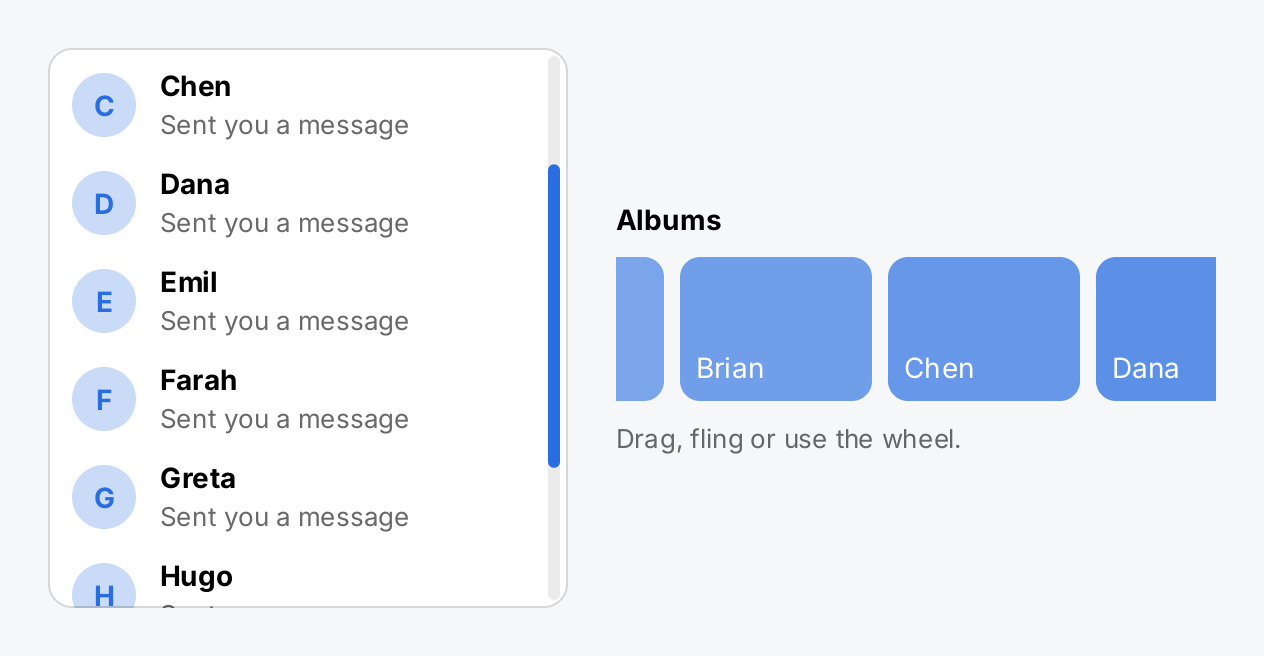
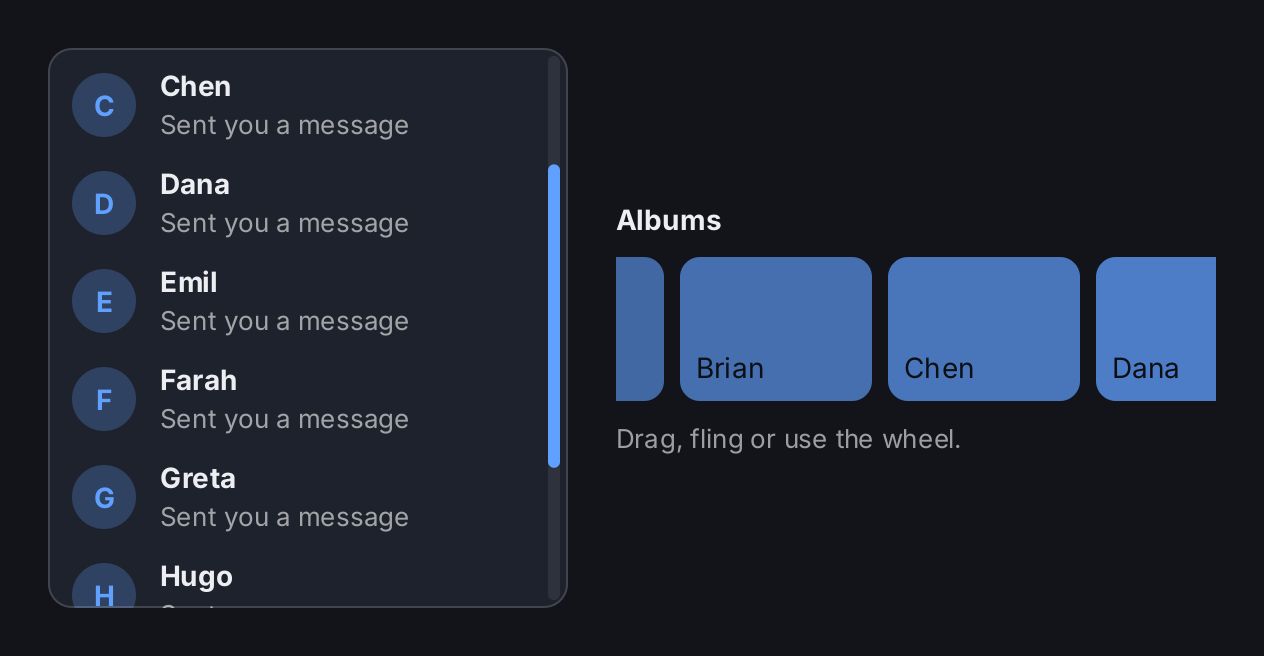
bold := ui.MustFont(ui.FontQuery{Family: inter.Family, Weight: ui.WeightBold})
people := []string{"Ada", "Brian", "Chen", "Dana", "Emil", "Farah", "Greta", "Hugo", "Ines", "Jonas"}

// A vertical list. The Frame bounds the viewport; without a bound on
// the scroll axis the view grows with its content and nothing scrolls.
rows := make([]gift.View, 0, len(people))
for _, name := range people {
	rows = append(rows, ui.HStack(
		ui.ZStack(
			ui.Box().Background(ui.Fade(ui.ColorAccent, 0.25)).CornerRadius(16),
			ui.Text(name[:1]).Font(bold).Foreground(ui.ColorAccent),
		).Align(geom.Center).Frame(32, 32),
		ui.VStack(
			ui.Text(name).Font(bold),
			ui.Text("Sent you a message").FontSize(13).Foreground(ui.ColorSecondaryLabel),
		).Gap(2),
	).Gap(12).Align(geom.Center))
}
inbox := ui.VScroll(rows...).
	Gap(12).Padding(12).
	Frame(260, 280).
	Background(ui.ColorSurface).CornerRadius(12).
	Border(ui.Border{Width: 1, Color: ui.ColorSeparator}).
	// The bar is drawn by the container; this one is thinner, inset
	// from the edge and in the accent color.
	ScrollBar(ui.ScrollBar{Width: 6, Margin: 4, Thumb: ui.ColorAccent})

// A horizontal strip. MaxWidth bounds the viewport along X; the cut
// tiles at both ends tell the user there is more, so it has no bar.
tiles := make([]gift.View, 0, 8)
for i := range 8 {
	tiles = append(tiles, ui.ZStack(
		ui.Box().Background(ui.Fade(ui.ColorAccent, 0.6+0.05*float32(i))).CornerRadius(10),
		ui.Text(people[i]).Foreground(ui.ColorOnAccent).Padding(8),
	).Align(geom.BottomLeading).Frame(96, 72))
}
strip := ui.HScroll(tiles...).Gap(8).MaxWidth(300).
	ScrollBar(ui.ScrollBar{Hidden: true})

return ui.HStack(
	inbox,
	ui.VStack(
		ui.Text("Albums").Font(bold),
		strip,
		ui.Text("Drag, fling or use the wheel.").FontSize(13).Foreground(ui.ColorSecondaryLabel),
	).Gap(10),
).Gap(24).Align(geom.Center)
Full demo on GitHub ↗
· run it with go run ./docs/gallery -demo scroll-view
Usage
Give the scroll axis a bound
A scroll view needs to know how big its viewport is. A stack measures an inflexible child with an unbounded main
axis, so a bare VScroll inside a VStack is as tall as its content, and scrolling does nothing. Bound the scroll
axis in one of three ways:
Flex(1)takes the space that is left in the parent stack. This is the usual choice for a screen.Frame(w, h)fixes the size of the viewport.MaxHeighton aVScroll, orMaxWidthon anHScroll, lets the viewport shrink to short content and stop growing at the limit.
ui.Window(ui.VStack(
	ui.Text("Settings").FontSize(22),
	ui.VScroll(rows...).Gap(8).Flex(1),
).Gap(16).Padding(24))
Do not pass geom.Unbounded() to Frame for the scroll axis. A bound can also come from the parent: a stack
passes its own width or height to its children along its cross axis, so an HScroll in a VStack is already no
wider than the column.
When scrolling does nothing, look at gift.ScrollInfo for the container, for example in the automation tree. A
MaxOffset of zero with a ViewportExtent equal to the ContentExtent means the viewport has no bound. gift does
not warn about this, because a scroll view with three short rows in it looks the same.
Scrolling
gift handles the gestures for you:
- The wheel scrolls the scroll view under the pointer, also when the pointer is over a child. One unit of wheel
delta moves 48 logical pixels by default;
WheelStepchanges it. - A drag that travels further than
gift.DragSlopscrolls and takes the press away from a button underneath. A shorter press stays a tap on the button. - On release, a fast drag turns into a fling that slows down over time.
Frictionsets how fast it slows down,FlingVelocitythe release speed below which there is no fling. - At either end, the content can be pulled past the edge and springs back.
Bounce(false)makes it stop dead instead.
Config(gift.ScrollConfig{...}) sets all of these at once. A zero field takes the package default, and so does a negative or non-finite one.
The whole scroll view is a hit target, so a click on its empty background does not reach the view behind it.
Nesting
A scroll view moves along one axis only. For two dimensions, nest an HScroll inside a VScroll. A wheel event
goes to the innermost scroll view that can still move in that direction. Once it reaches its end, the event goes
to the next scroll view outside. A drag is decided once, at the moment it starts, and then stays with the scroll
view that took it until the release. Because of the rubber band, the inner scroll view takes a drag even at its
end; with Bounce(false) it passes a drag it cannot follow to the scroll view outside.
The offset
The scroll offset is presentation state, like hover. It lives in the retained node, not in your state, and it survives rebuilds. Scrolling rebuilds nothing and measures nothing: gift only moves the children. A screen that is covered by another one in a navigation stack stays mounted and keeps its offset.
Because a vertical and a horizontal scroll view are different view types, switching between VScroll and HScroll
at the same place starts over at offset zero.
gift.App.ScrollTo jumps to an offset and gift.App.ScrollIntoView moves every scroll view above a node until the
node is visible. Both jump without animation. A focused ui.TextField scrolls itself into view.
Decoration
Background fills the viewport and does not scroll. Border is drawn over the content, so the content scrolls
underneath it. Padding is inside the viewport and scrolls with the content: the top padding of a VScroll is
visible at the start and gone once the user scrolls past it.
CornerRadius rounds the background and the border, but the content is clipped to a rectangle. Leave enough padding
that the content does not reach into the rounded corners.
A scroll view always clips. Clip(true) is accepted and changes nothing; Clip(false) panics. Use a VStack or an
HStack if you do not want clipping.
The scroll bar
A scroll view draws a scroll bar along its trailing edge whenever the content is longer than the viewport. The bar lies over the content. It is fully visible while the content moves, while the user holds the thumb and while the pointer is over the track. When none of that is true, it stays for a moment and then fades out. The user can drag the thumb, and a click on the track moves one viewport towards the click.
There is no bar when the content fits, or when the viewport is so short that the thumb would fill the whole track.
ScrollBar(ui.ScrollBar{...}) changes the look and the timing. Zero fields take the values of
ui.DefaultScrollBar, so you only set what you want to change. ui.ScrollBar{Hidden: true} removes the bar. The
bar is always a capsule; there is no corner radius to set.
ui.VScroll(rows...).
	Frame(260, 280).
	ScrollBar(ui.ScrollBar{Width: 6, Margin: 4, Thumb: ui.ColorAccent})
A transparent Track or Thumb, including ui.ColorClear, falls back to the default color. To get no bar at all,
use Hidden.
Long content
A scroll view builds and lays out all of its children. That is fine for a screen of controls or a few dozen rows. For hundreds or thousands of items, use a Virtual List or an Image Gallery, which only build what is visible.
API
Constructors
| Constructor | Description |
|---|---|
func HScroll(children ...gift.View) ScrollView | HScroll arranges its children from leading to trailing and scrolls horizontally. |
func VScroll(children ...gift.View) ScrollView | VScroll arranges its children from top to bottom and scrolls vertically. |
Methods
| Method | Description |
|---|---|
Bounce(v bool) ScrollView | Bounce turns the rubber band off with false: the content then stops dead at its ends instead of being pulled past them and springing back. |
Config(v gift.ScrollConfig) ScrollView | Config replaces the whole gesture configuration in one call. |
FlingVelocity(v float32) ScrollView | FlingVelocity sets the release speed, in logical pixels per second, below which a drag ends in a stop rather than a fling. |
Friction(v float32) ScrollView | Friction sets the exponential decay rate of a fling in reciprocal seconds, replacing gift.DefaultScrollFriction for this container. |
Gap(v float32) ScrollView | Gap sets the space inserted between two adjacent children, exactly as Stack.Gap. |
ScrollBar(v ScrollBar) ScrollView | ScrollBar sets the look and the timing of the scroll indicator. |
WheelStep(v float32) ScrollView | WheelStep sets how far one unit of wheel delta scrolls, in logical pixels, replacing gift.DefaultScrollWheelStep. |
Common modifiers: Align, Background, Border, Clip, CornerRadius, Flex, Frame, Key, MaxHeight, MaxWidth, MinHeight, MinWidth, Padding, PaddingInsets, Shadow. See Modifiers.
ScrollBar
ui.ScrollBar is a plain struct. A zero field takes the value of ui.DefaultScrollBar, except Margin.
| Field | Type | Default | Meaning |
|---|---|---|---|
Hidden | bool | false | Turns the bar off. The only way to have no bar. |
Width | float32 | 8 | Thickness of the bar across the scroll axis, in logical pixels. |
MinThumb | float32 | 28 | Shortest length of the thumb, in logical pixels. |
Margin | float32 | 0 | Gap between the track and the edges of the viewport. Zero is flush. |
Track | ui.Color | ColorLabel at 8 % opacity | Color of the groove. A transparent value takes the default. |
Thumb | ui.Color | ColorLabel at 51 % opacity | Color of the thumb. A transparent value takes the default. |
Hold | time.Duration | 500 ms | How long the bar stays fully visible after the content stopped. |
Fade | time.Duration | 250 ms | How long the bar then takes to disappear. |
Negative or non-finite sizes and negative durations panic. Hold plus Fade should stay below gift.ScrollIndicatorLinger; a longer bar ends with a snap instead of a fade.
Related
- Stack for the layout a scroll view uses inside its viewport.
- Virtual List and Image Gallery for long collections.
- List for grouped rows, often placed in a scroll view.
- Navigation Stack keeps covered screens and their offsets.
- Layout for constraints,
Flexand why the scroll axis needs a bound. - Input and Focus for drags, the wheel and the drag slop.
- Diagnostics for
gift.Diagnostics.Scrollsand the scroll info. - Kitchen Sink puts its screens and an icon strip into scroll views.