Window
ui.Window wraps the root view of your application in the window background. gift paints nothing you did not
ask for, and the backend hands every frame a transparent black screen. Without a background view, the gaps
between your views show whatever the framebuffer held: a composited hole on a desktop, the old console on a
kiosk. ui.Window fills the whole window with ui.ColorBackground and stacks your content on top of it.
Use it exactly once, as the outermost view of your root function. It is also where the on-screen keyboard goes.
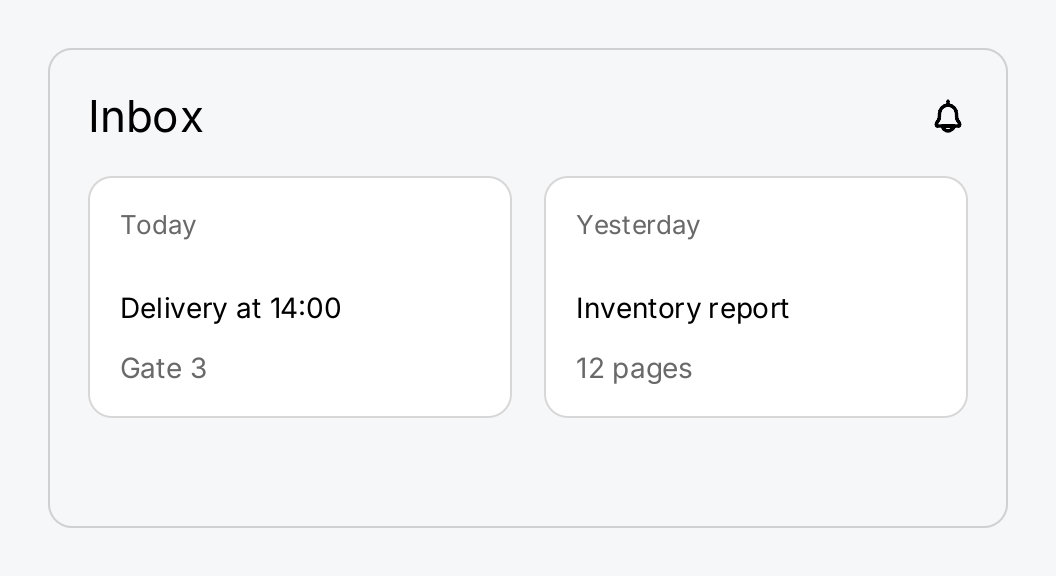
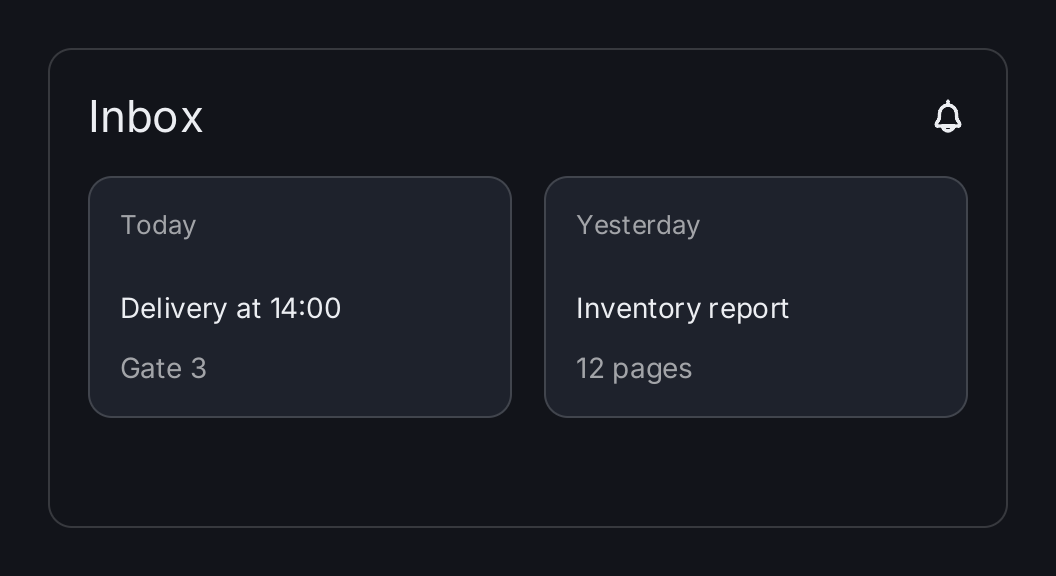
// The content of a screen: a title bar and two cards side by side.
content := ui.VStack(
	ui.HStack(
		ui.Text("Inbox").FontSize(22),
		ui.Spacer(),
		ui.Icon(outline.Bell).Size(20),
	).Align(geom.Center),
	ui.HStack(
		ui.Card(
			ui.Text("Delivery at 14:00"),
			ui.Text("Gate 3").Foreground(ui.ColorSecondaryLabel),
		).Header("Today").Flex(1),
		ui.Card(
			ui.Text("Inventory report"),
			ui.Text("12 pages").Foreground(ui.ColorSecondaryLabel),
		).Header("Yesterday").Flex(1),
	).Gap(16),
).Gap(16).Padding(20)

// Window paints ColorBackground behind the content, so the cards sit on
// the page and not on whatever the framebuffer held. The result is an
// Overlay: Align places the content inside the window.
screen := ui.Window(content).Align(geom.TopLeading)

// Only for this picture: a real root view fills the whole window, here
// it is framed and outlined to show it as a miniature.
return screen.Frame(480, 240).
	CornerRadius(12).
	Border(ui.Border{Width: 1, Color: ui.ColorSeparator}).
	Clip(true)
Full demo on GitHub ↗
· run it with go run ./docs/gallery -demo window
Usage
Return it from the root view. The root function you pass to gift.New returns the window:
func screen(ctx *gift.Context) gift.View {
	return ui.Window(ui.VStack(
		ui.Text("Hello"),
	).Padding(24))
}

app := gift.New(gift.Options{Root: screen})
The demo above frames and outlines the window only to show it as a miniature. In an application, leave the frame off so the window background fills the whole window.
It is a ZStack with a background plate. Window(content...) builds a ZStack whose
first child is an unframed Box filled with ui.ColorBackground, followed by your
content in the order you pass it. An unframed box in a ZStack is greedy, so the background covers the whole
window even when your content does not. The result is an ordinary Overlay, so all of its modifiers apply.
Align places the content. Align positions every child inside the window. The zero alignment is the top
leading corner. A screen that fills the window is not moved by it; a smaller panel is, for example
Align(geom.Center) for a centered dialog-like screen.
Page and surface. ColorBackground is the page. Cards, Modal
sheets and the bars of a TabBar or a
NavigationStack use ColorSurface and sit on that page. Do not fill a
whole screen with ColorSurface; that flattens the two levels. See Colors.
The on-screen keyboard is a direct child. Pass ui.OnScreenKeyboard() as the last child and align the
window to the bottom:
return ui.Window(form, ui.OnScreenKeyboard()).Align(geom.Bottom)The keyboard only appears when you turn it on with ui.SetOnScreenKeyboard(app, true) (it is off by default)
and a text field has the focus.
While it shows, the other children are laid out in the part of the window above it: scroll views get a shorter
viewport and a button at the bottom of the screen stays above the keys. When the keyboard goes away, they get
the whole window back. The background plate always keeps the full size, so the page is painted behind the
keyboard too.
AvoidKeyboard turns that off. AvoidKeyboard(true) is the default. AvoidKeyboard(false) lets the
keyboard cover the content instead. Use it only for a screen that must not re-flow while someone types, such
as a full screen camera preview with one field on top of it, never for a form.
return ui.Window(preview, ui.OnScreenKeyboard()).Align(geom.Bottom).AvoidKeyboard(false)Avoidance has two limits. The keyboard must be a direct child of the window; one wrapped in another container is laid out like any other child. And only a vertical alignment at the top or bottom edge reserves space; a centered keyboard reserves nothing.
Put a Modal inside the window. A Modal goes inside the window, next to the keyboard, so its scrim and sheet are laid out above the keyboard:
ui.Window(ui.Modal(screen, sheet), ui.OnScreenKeyboard()).Align(geom.Bottom)The other way round, with the keyboard inside the modal’s content, puts the keyboard under the scrim, where no key can be pressed.
Test that the window is opaque. Forgetting ui.Window is silent: nothing panics and every structural test
passes. Harness.AssertOpaque in package gifttest fails when any pixel of the framebuffer is not fully
opaque. See Testing.
API
Constructors
| Constructor | Description |
|---|---|
func Window(content ...gift.View) Overlay | Window wraps the root view of an application in the window background. |
func ZStack(children ...gift.View) Overlay | ZStack draws its children on top of each other, first child at the bottom. |
Methods
| Method | Description |
|---|---|
AvoidKeyboard(v bool) Overlay | AvoidKeyboard says whether the other children make room for an OnScreenKeyboard that is a direct child of this overlay. |
Common modifiers: Align, Background, Border, Clip, CornerRadius, Flex, Frame, Key, MaxHeight, MaxWidth, MinHeight, MinWidth, Padding, PaddingInsets, Shadow. See Modifiers.
Related
- ZStack: the same
Overlaywithout the background plate - Box: the greedy view that paints the background
- Keyboard: the on-screen keyboard and how it avoids content
- Modal: a dialog placed inside the window
- Card: a surface raised on the page
- Colors:
ColorBackground,ColorSurfaceand the other semantic colors - Theming
- Kiosks: the on-screen keyboard on a touch panel
- Testing:
Harness.AssertOpaque - Counter example: a minimal application with a window