Video Player
The video player shows a video with its sound and controls a finger can operate, laid out like the player of iOS: play and pause in the middle between a jump back and a jump forward, the position bar with the elapsed and the remaining time along the bottom, the volume at the top left and the audio track menu at the top right. It is meant for touch panels as small as five inches, and every button is at least 44 pixels wide. A tap on the picture shows or hides the controls; while the video plays they hide by themselves.
The view plays a video.Player, which you open, keep and close. The player decodes H.264, H.265 and every other
format the FFmpeg of the system knows, in software or, for HEVC on a Raspberry Pi 5, in hardware.
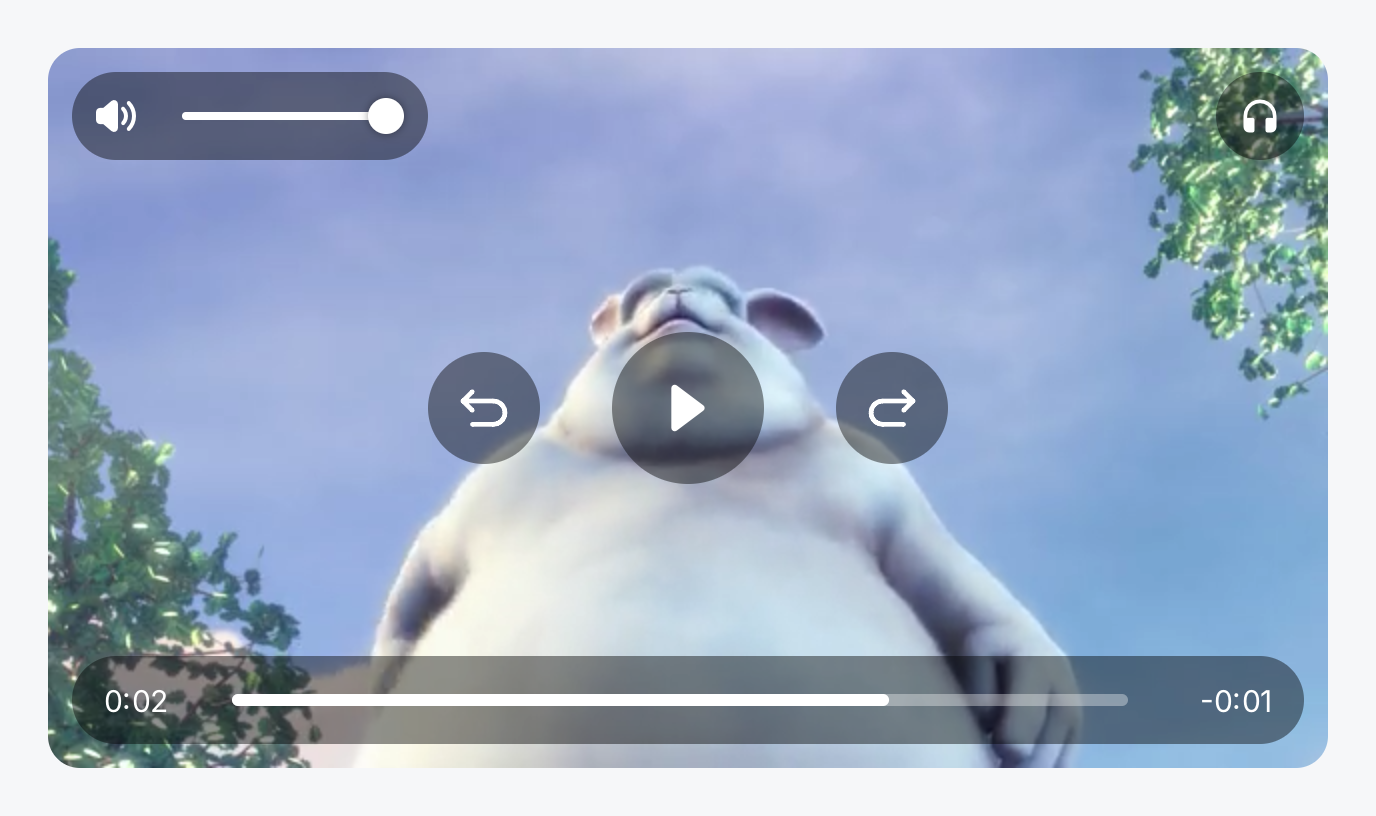
return ui.ZStack(
	videoplayer.New(p).
		AutoHide(0).
		CornerRadius(16),
).Frame(640, 360)
Full demo on GitHub ↗
· run it with go run ./docs/gallery -demo video-player
Usage
Open a player and keep it
video.Open(path, options) opens a file and starts decoding in the background. It returns once the file is open,
so Duration, Info and AudioTracks are known right away. The player is not a view and not owned by one: keep it
in state, create the view from it in every build, and close it when the screen goes away.
func screen(ctx *gift.Context) gift.View {
	slot := ctx.State("player", (*video.Player)(nil))
	p := slot.Get()
	if p == nil {
		var err error
		if p, err = video.Open("/media/usb/film.mp4", video.Options{HW: true}); err != nil {
			return ui.Text(err.Error())
		}
		p.Play()
		slot.Set(p)
	}
	return videoplayer.New(p)
}
Options.HW asks for the hardware decoder where there is one; without one the player decodes in software.
Options.Loop starts over at the end. Call Play, Pause, Seek, SetVolume, SetMuted and
SelectAudioTrack from anywhere; the controls show what the player does, whoever did it. OnEnd runs a function
when the video has played to the end.
FFmpeg
The decoding is done by the FFmpeg libraries of the system, which the video package opens with dlopen the first
time it needs them. Raspberry Pi OS has them installed; on macOS, install them with brew install ffmpeg.
The package knows the struct layouts of FFmpeg 5.1 (Raspberry Pi OS Bookworm), 6.1, 7.1 (Trixie), 8.0 and 9.0
(Homebrew); 7.1 and 9.0 are the ones it is tested with. Without the libraries, or with another release,
video.Open returns an error that wraps ffmpeg.ErrUnavailable. Windows is not supported.
The view needs the backend in backend/ebiten: it uploads the pictures and plays the sound. In a test harness
without one, the player still runs on the wall clock, and the view draws black instead of the picture.
Size and shape
The view fills the space it is offered. Along an unbounded axis, as in a VStack, it takes the aspect ratio of the
video, so a player in a column is as tall as its width asks for. Pictures with pixels that are not square, such as
PAL in 16:9, are shown at their display aspect ratio.
Gravity decides how the picture fills a view of another shape: ResizeAspect (the default) shows all of it with
bars, ResizeAspectFill fills the view and cuts off the rest, Resize stretches it. CornerRadius rounds the
view.
Controls
- Play and pause in the middle, between jumps of
Skip(ten seconds by default) back and forward. - Position: tap the bar anywhere or drag along it. While the finger is on it, the video pauses and the picture follows the finger four times a second; the exact seek happens when the finger lifts. With the focus, the arrow keys jump five seconds.
- Volume: the speaker button mutes and unmutes, the slider sets the volume.
- Audio track: for a file with more than one audio track, the headphones button opens a menu with one line per track, named by the file’s title for it or by its language and channels, such as “Deutsch · 5.1”.
AutoHide sets how long the controls stay after the last touch while the video plays, three seconds by default;
zero keeps them, which suits a kiosk. While the video is paused they stay. ShowsControls(false) leaves the
picture alone, and videoplayer.Surface(p) is the picture as a view of its own, with OnTap for your own
controls.
Performance on a Raspberry Pi
A Raspberry Pi 5 shows full HD at 60 frames a second, H.264 in software and HEVC in software or hardware, with the controls visible. Two settings and one habit matter:
- Run the window with
DirectToScreenandDrawOnDemandinbackend.Config. A video shown at its own size is then converted from YUV in the same pass that draws it onto the screen. - Do not put the player into a
ui.Windowwhen it fills the screen: the window’s background would be drawn under the picture in every frame, a full screen pass the picture covers completely.
See Kiosks for the other settings of a device that runs one screen.
API
Constructors
| Constructor | Description |
|---|---|
func New(p *video.Player) PlayerView | New returns a player view for p. |
Methods
| Method | Description |
|---|---|
AutoHide(d time.Duration) PlayerView | AutoHide sets how long the controls stay after the last touch while the video plays. |
Gravity(g Gravity) PlayerView | Gravity sets how the picture fills the view; see Gravity. |
ShowsControls(b bool) PlayerView | ShowsControls switches the controls off, which leaves a Surface that still stretches like this view. |
Skip(d time.Duration) PlayerView | Skip sets how far the jump buttons jump. |
Common modifiers: CornerRadius, Flex, Key. See Modifiers.
Constructors
| Constructor | Description |
|---|---|
func Surface(p *video.Player) SurfaceView | Surface returns a view of p’s picture. |
Methods
| Method | Description |
|---|---|
Gravity(g Gravity) SurfaceView | Gravity sets how the picture fills the view; see Gravity. |
Label(s string) SurfaceView | Label sets the accessibility label. |
OnTap(fn func()) SurfaceView | OnTap calls fn when the picture is tapped or clicked without moving. |
Common modifiers: Background, CornerRadius, Key. See Modifiers.
type Gravity uint8Constructors
| Constructor | Description |
|---|---|
func Open(path string, opt Options) (*Player, error) | Open opens path and starts decoding. |
Methods
| Method | Description |
|---|---|
AttachAudio(out render.AudioOutput) | AttachAudio plays the sound on out. |
AudioRate() int | AudioRate is the sample rate of Player.AudioStream. |
AudioStream() *AudioStream | AudioStream is the sound to play now, or nil for a file without sound. |
AudioTrack() int | AudioTrack is the index into Player.AudioTracks of the track that plays, or -1 for a file without sound. |
AudioTracks() []ffmpeg.AudioTrack | AudioTracks lists the audio tracks of the file. |
Close() | Close stops the goroutines and releases the file. |
Closed() bool | Closed reports whether Player.Close was called. |
CurrentTime() time.Duration | CurrentTime is the position of the clock. |
Duration() time.Duration | Duration is the length of the file, or zero when it is not known. |
Err() error | Err is the error that made the status StatusFailed. |
Info() ffmpeg.Info | Info describes the file. |
Muted() bool | Muted reports whether the sound is muted. |
NeedsFrames() bool | NeedsFrames reports whether Player.Frame may return a new picture soon: while the clock runs or waits to, and after a seek until its picture is shown. |
OnEnd(f func()) | OnEnd installs a function that is called, on a decoder goroutine, when playback reaches the end of the file without looping: the analogue of AVPlayerItemDidPlayToEndTime. |
Pause() | Pause stops the clock. |
Play() | Play starts or resumes playback. |
Seek(t time.Duration) | Seek moves to t, exactly: the decoders start at the key frame before t and everything decoded before t is dropped. |
SelectAudioTrack(i int) | SelectAudioTrack switches to track i of Player.AudioTracks, at the current position: AVPlayerItem.select(_:in:) for the audible group. |
SetLoop(l bool) | SetLoop makes the player start over at the end. |
SetMuted(m bool) | SetMuted mutes or unmutes the sound without changing the volume. |
SetVolume(v float64) | SetVolume sets the volume from 0 to 1. |
Stats() Stats | Stats returns the counters. |
Status() Status | Status reports whether the player can play. |
TimeControlStatus() TimeControlStatus | TimeControlStatus reports what the clock does. |
VideoHW() string | VideoHW is the hardware the pictures are decoded on, or “”. |
Volume() float64 | Volume is the volume from 0 to 1. |
Common modifiers: Frame. See Modifiers.
type Options struct {
	HW        bool
	Loop      bool
	AudioRate int
	Frames    int
}Related
- Image shows a still picture.
- Video example plays a file full window on a touch panel.