Tab Bar
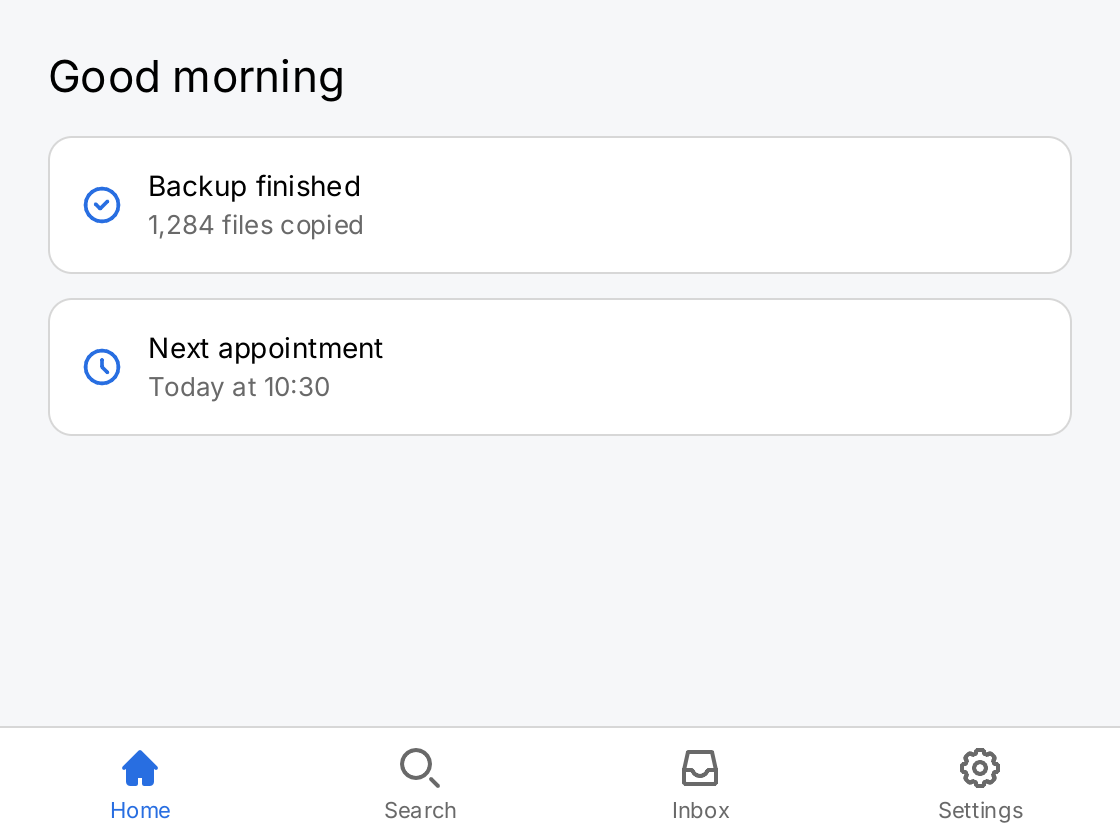
A tab bar is the primary navigation of a kiosk or a single-window app. It shows a row of icon-and-caption items along the bottom of the window and one screen above them. Use it when your app has a handful of top-level screens that the user switches between all the time.
A tab bar is a whole screen, not a control you place in a row. It fills the area it is given, and it keeps every tab alive while another one is selected. For a deep hierarchy of screens, or for many of them, use a navigation stack instead.
tab := ctx.State("tab", 0)

// Each tab's content is a whole screen. It stays mounted while another
// tab is selected, so its state survives switching back and forth.
screen := func(title string, rows ...gift.View) gift.View {
	return ui.VStack(
		ui.Text(title).FontSize(22),
		ui.VStack(rows...).Gap(12),
		ui.Spacer(),
	).Gap(16).Padding(24)
}
entry := func(sym ui.Symbol, text, detail string) gift.View {
	return ui.Card(ui.HStack(
		ui.Icon(sym).Size(22).Foreground(ui.ColorAccent),
		ui.VStack(
			ui.Text(text),
			ui.Text(detail).FontSize(13).Foreground(ui.ColorSecondaryLabel),
		).Gap(2),
		ui.Spacer(),
	).Gap(12).Align(geom.Center))
}

home := screen("Good morning",
	entry(outline.CheckCircle, "Backup finished", "1,284 files copied"),
	entry(outline.Clock, "Next appointment", "Today at 10:30"),
)

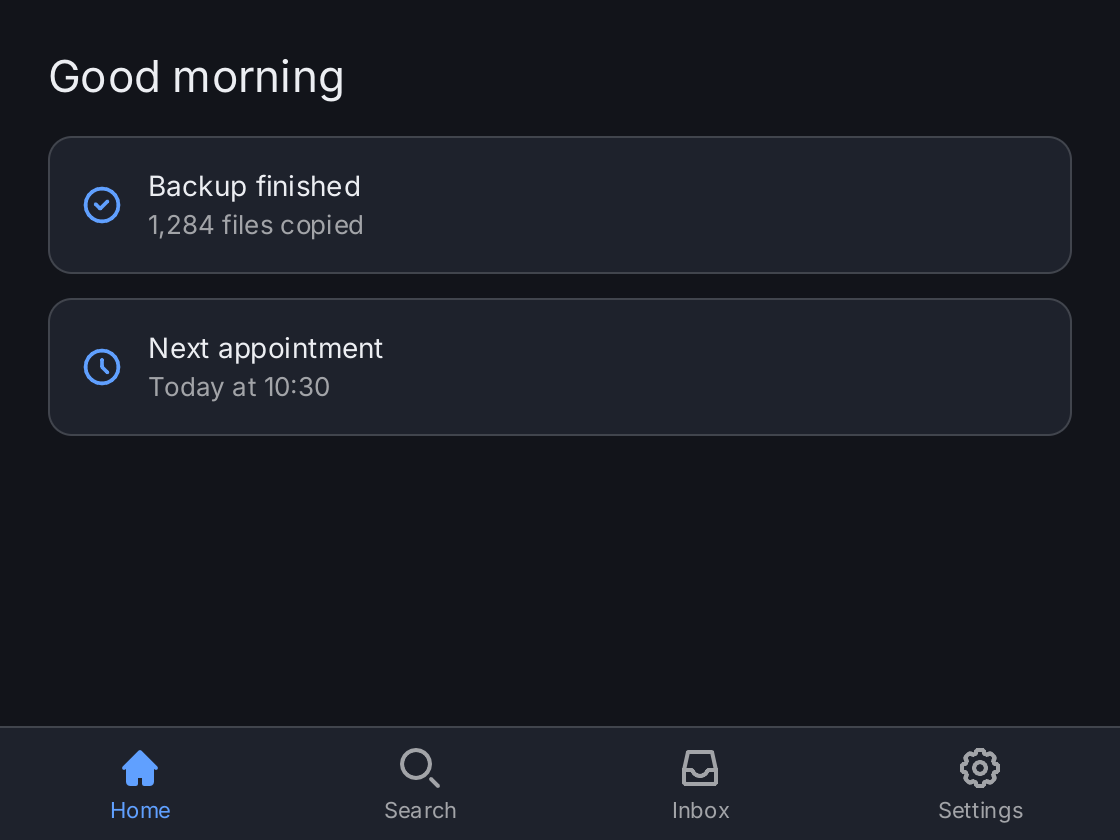
// The selected tab is drawn in the accent color; SelectedIcon swaps the
// outline symbol for the solid one while the tab is selected.
return ui.TabBar(ctx.Read(tab), tab.Set,
	ui.Tab("Home", outline.Home, home).SelectedIcon(solid.Home),
	ui.Tab("Search", outline.Search, screen("Search")).SelectedIcon(solid.Search),
	ui.Tab("Inbox", outline.Inbox, screen("Inbox")).SelectedIcon(solid.Inbox),
	ui.Tab("Settings", outline.Cog, screen("Settings")).SelectedIcon(solid.Cog),
)
Full demo on GitHub ↗
· run it with go run ./docs/gallery -demo tab-bar
Usage
State flows in and out
ui.TabBar(selected, onSelect, tabs...) shows the content of tabs[selected] and calls onSelect with the index
of the tab the user taps. The tab bar keeps no selection of its own. Store the index in state, read it with
ctx.Read so that a change rebuilds the view, and pass the setter as the callback:
tab := ctx.State("tab", 0)
ui.TabBar(ctx.Read(tab), tab.Set,
	ui.Tab("Home", outline.Home, home).SelectedIcon(solid.Home),
	ui.Tab("Settings", outline.Cog, settings),
)
Nothing changes until your app stores the new index. This lets you keep the user on a tab, for example on a form with unsaved changes:
ui.TabBar(ctx.Read(tab), func(i int) {
	if dirty.Get() {
		return // stay on the unsaved form
	}
	tab.Set(i)
}, tabs...)- An index out of range shows the first tab instead of panicking.
- A tab bar without tabs panics.
- A nil
onSelectmakes the items inert: they still take presses and focus, but nothing happens.
Tabs
ui.Tab(title, symbol, content) describes one tab. The title is the caption under the icon and the accessible name
of the item. The content is the tab’s screen. A nil content panics.
The selected item is drawn in ui.ColorAccent and the others in ui.ColorSecondaryLabel. Without SelectedIcon,
only the color changes. With it, the selected tab shows a different symbol, usually the solid variant of the outline
icon.
Pass the zero ui.Symbol to draw a tab with a caption and no icon.
Inactive tabs stay mounted
Every tab is built before the first frame and stays mounted while it is hidden. A hidden tab keeps its state, its scroll offsets and the text in its fields, so switching back shows it exactly as the user left it. It is not painted, not hit tested and not in the focus order, so it costs nothing per frame.
Two costs remain. All tabs exist in memory from the start, and a state change inside a hidden tab still rebuilds and lays out that tab. Keep a tab bar to a handful of screens.
When the selection changes, the outgoing screen slides off to one side and the incoming one slides in from the other, in the order of the tabs.
Keys
Each tab’s identity is its key, which defaults to its title. That is what keeps the state of a tab when tabs
before it are added or removed. Use Key when two tabs share a title.
Sizing
The tab bar fills the area it is given. The bar along the bottom is ui.TabBarHeight (56 logical pixels) tall,
on a ui.ColorSurface background with a separator line above it. The items divide the width equally.
A tab bar needs a bounded area on both axes. It panics inside a scroll view or as an inflexible child of a stack,
because the stack measures it with an unbounded main axis. Give it Flex:
ui.VStack(
	header,
	ui.TabBar(ctx.Read(tab), tab.Set, tabs...).Flex(1),
)
Usually the tab bar is the root view of the window and needs neither.
API
Constructors
| Constructor | Description |
|---|---|
func TabBar(selected int, onSelect func(int), tabs ...TabSpec) TabBarView | TabBar returns a tab bar showing the content of tabs[selected] and calling onSelect with the index of the tab the user asked for. |
Common modifiers: Flex, Key. See Modifiers.
Constructors
| Constructor | Description |
|---|---|
func Tab(title string, sym Symbol, content gift.View) TabSpec | Tab describes one tab of a TabBarView. |
Methods
| Method | Description |
|---|---|
SelectedIcon(v Symbol) TabSpec | SelectedIcon sets the symbol drawn while this tab is the selected one. |
Common modifiers: Key. See Modifiers.
Related
- Navigation Stack for drill-down navigation inside a tab
- Segmented Control to switch views within one screen
- Window
- Navigation
- State
- Icons
- Kiosks
- Kitchen sink example