Glass
Glass is a background material that shows what lies behind a view. You pass ui.Glass() to the Background
modifier of any view, in place of a color. The pane tints the backdrop, brightens its rim, bends the backdrop a
little at the edge and, at the Full quality level, blurs it.
Use glass for a panel that floats over content that moves or carries color: a toolbar over a photo gallery, a control panel over a wallpaper. Over a plain flat background there is nothing to bend or blur, and the pane looks like a slightly tinted rectangle with bright edges. The material is experimental.
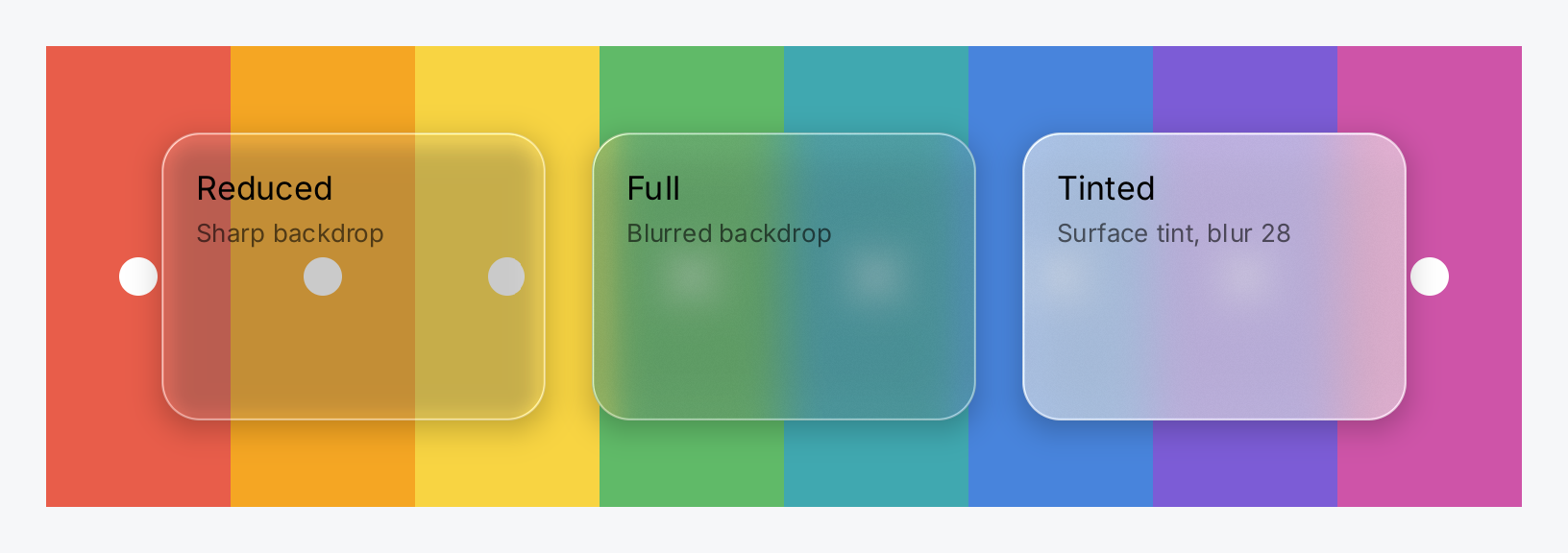
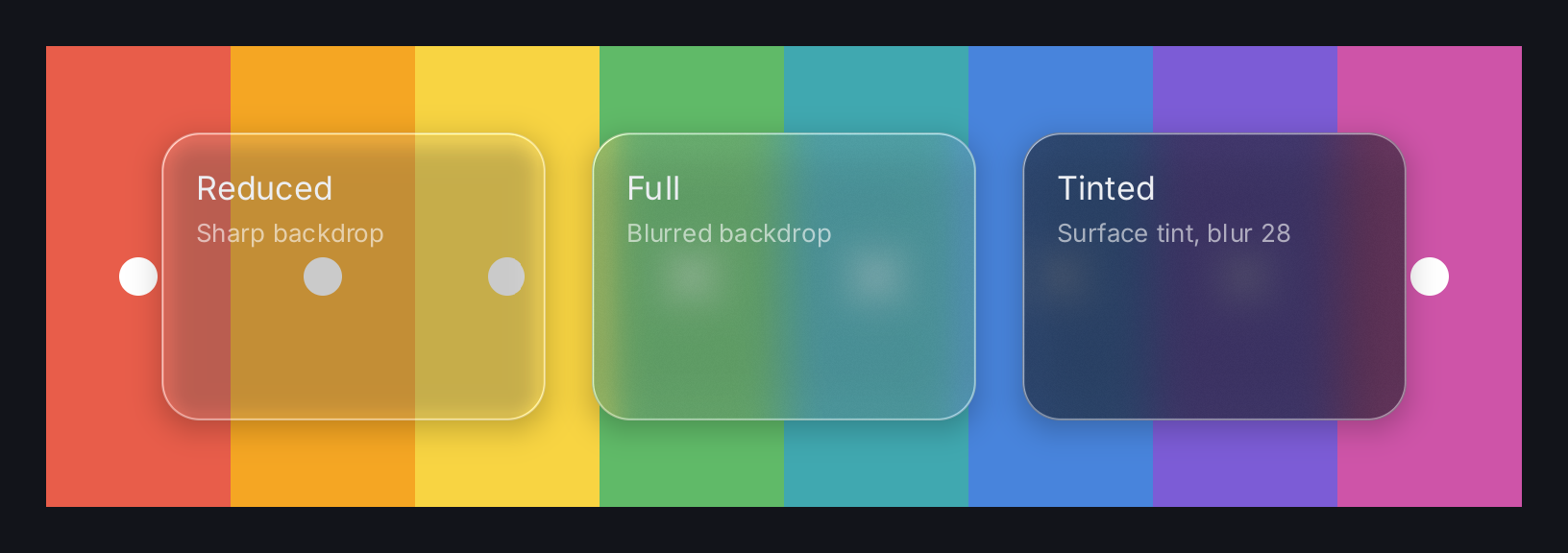
// Glass shows what lies behind it, so it needs a busy backdrop: here a
// row of colored stripes with a few dots on top.
palette := []ui.Color{
	ui.RGB(232, 93, 74), ui.RGB(245, 166, 35), ui.RGB(248, 212, 66),
	ui.RGB(96, 186, 104), ui.RGB(64, 168, 176), ui.RGB(72, 132, 220),
	ui.RGB(124, 92, 214), ui.RGB(206, 84, 168),
}
var stripes, dots []gift.View
for _, c := range palette {
	stripes = append(stripes, ui.Box().Background(c).Frame(96, 240))
	dots = append(dots, ui.Box().Background(ui.RGB(255, 255, 255)).Frame(20, 20).CornerRadius(10))
}
backdrop := ui.ZStack(
	ui.HStack(stripes...),
	ui.HStack(dots...).Gap(76),
).Align(geom.Center)

// One pane per variant. The pane is an ordinary stack with the glass
// material as its background; the material is clipped to the corner radius.
pane := func(title, detail string, glass ui.GlassMaterial) gift.View {
	return ui.VStack(
		ui.Text(title).FontSize(17).Foreground(ui.ColorLabel),
		ui.Text(detail).FontSize(13).Foreground(ui.ColorSecondaryLabel),
	).
		Gap(4).
		Padding(18).
		Frame(200, 150).
		Align(geom.Leading).
		Background(glass).
		Border(ui.Border{Width: 1, Color: ui.RGBA(255, 255, 255, 90)}).
		CornerRadius(20).
		Shadow(ui.Shadow{Blur: 16, OffsetY: 4, Color: ui.RGBA(0, 0, 0, 60)})
}

return ui.ZStack(
	backdrop,
	ui.HStack(
		// Reduced: no blur, only tint, edge highlight and refraction.
		pane("Reduced", "Sharp backdrop", ui.Glass().Quality(ui.Reduced)),
		// Full: the backdrop is blurred as well.
		pane("Full", "Blurred backdrop", ui.Glass().Quality(ui.Full)),
		// Full with a theme tint, a stronger blur and more refraction.
		pane("Tinted", "Surface tint, blur 28",
			ui.Glass().Quality(ui.Full).
				Tint(ui.Fade(ui.ColorSurface, 0.55)).
				Blur(28).
				Refraction(12)),
	).Gap(24),
).Align(geom.Center)
Full demo on GitHub ↗
· run it with go run ./docs/gallery -demo glass
Usage
A glass background
ui.Glass() returns a GlassMaterial with default parameters. Every setter returns a new value, so you chain
them:
ui.VStack(
	ui.Text("Library").FontSize(24),
	ui.Button(ui.Text("Import"), importPhotos),
).
	Gap(12).
	Padding(20).
	Background(ui.Glass().Quality(ui.Adaptive)).
	Border(ui.Border{Width: 1, Color: ui.RGBA(255, 255, 255, 90)}).
	CornerRadius(18).
	Shadow(ui.Shadow{Blur: 16, OffsetY: 4, Color: ui.RGBA(0, 0, 0, 70)})
A thin light border and a soft shadow help the pane stand off its backdrop. The material itself is clipped to the
bounds of the view and its CornerRadius.
What the pane shows
The backdrop is everything drawn before the view and nothing else. The view’s own content, its children and any later sibling are not part of it. So the content you want behind the glass must come first, usually as an earlier child of a ZStack:
ui.ZStack(
	ui.ImageGallery(gallery),       // drawn first: the backdrop
	ui.VStack(toolbar, ui.Spacer()), // drawn on top: the glass panel
)
Put one glass panel over the content, not glass on every tile. Every pane is a barrier for batching: everything drawn before it has to be flushed before its backdrop can be read, so each extra pane adds draw calls.
The backdrop is read every frame. When the content behind a pane scrolls or animates, the pane follows it, even if the pane itself never moves.
Quality levels
GlassQuality selects how much work a pane may cost:
ui.Reducedis one copy of the region behind the pane and one composite pass: tint, edge highlight and refraction. There is no blur, so the backdrop stays sharp.ui.Fulladds a blur chain (dual Kawase), confined to the material region, and grain. This is the frosted look.ui.Adaptiveis the default. It is not a third level but a rule: the backend chooses betweenReducedandFullfrom what it measures.
At both levels the copy of the backdrop and the blur stay inside the pane’s region. Quality on the material
requests a level for that one pane, as the demo does to show both side by side. A pane that keeps Adaptive takes
the level the backend chose for the frame.
Adaptive quality and the Raspberry Pi
Ebitengine offers no way to ask a GPU what it can afford, so Adaptive measures instead. It starts at Full and
watches two signals, with these defaults:
- the median interval between drawn frames over the last 60 frames. Above 20 ms it drops to
Reduced, below 18 ms it climbs back, and a level is held for at least 90 frames before it changes again; - the area of all live glass panes in a frame. Above a quarter of the screen it drops to
Reducedon the next frame, without waiting.Fullreturns only after the area has stayed at or below a fifth of the screen for a whole window. Panes over a static picture, described below, do not count.
On a Raspberry Pi 4 the Full level may be too expensive. There the policy drops to Reduced within a window
plus the hold time, about two and a half seconds. If you configure a Logger in backend.Config, each drop is
logged once at Warn level and each return to Full at Info level, never per frame.
backend.GlassPolicyConfig holds the thresholds; a zero field keeps its default. To use others, replace the
renderer’s policy in Config.OnRenderer:
backend.Run(app, backend.Config{
	Title: "Kiosk",
	OnRenderer: func(r *backend.Renderer) {
		r.SetGlassPolicy(backend.NewGlassPolicy(backend.GlassPolicyConfig{
			DownInterval: 25 * time.Millisecond,
			UpInterval:   22 * time.Millisecond,
		}))
	},
})
A new policy starts at Full and unpinned, so it also discards a level pinned with Config.GlassQuality.
Live glass is expensive on a tile based GPU such as the Pi’s mainly because everything drawn before the pane has
to reach memory before the pane can read it. There is one case without that cost: when all that lies behind a pane
is one opaque picture, such as a wallpaper or a photo, with nothing drawn over the picture inside the pane, the
backend blurs the picture once, keeps it, and draws the pane in a single pass. You declare nothing for this. Put
the panes directly on the picture and keep other content from underneath them. The backend’s measurements on a
Raspberry Pi 400 with ten Full panes over a photo: 31.1 ms per frame live against 10.4 ms over the static
picture at 1024x600.
Pinning the level
To fix the level for the whole run, set GlassQuality in the backend configuration. Here and above, backend is
the package github.com/worldiety/gift/backend/ebiten, imported under that name as in the examples:
backend.Run(app, backend.Config{
	Title:        "Kiosk",
	GlassQuality: ui.Reduced,
})
The zero value is ui.Adaptive. A pinned level wins over the Quality of every material, so the whole run is
drawn at one level. Pin it whenever you compare frame times between runs: an adaptive run can change how much
work it does half way through.
To pin or unpin while the application runs, keep the renderer from Config.OnRenderer and call
PinGlassQuality; ui.Adaptive returns to the policy. GlassLevel reports the level the last frame actually
used, which is never Adaptive. The effects example does both.
Tuning the material
The setters change one parameter each. Blur and grain only show at Full.
ui.Glass().
	Tint(ui.Fade(ui.ColorSurface, 0.55)). // a milky pane in the theme's surface color
	Blur(28).
	Refraction(12)
The tint may be a semantic color, also faded with ui.Fade. It is resolved against the current theme like any
other color, so a tinted pane follows the switch between light and dark. Its alpha decides how milky the pane is:
zero is a clear pane, one an opaque plate.
API
type GlassMaterial = render.GlassConstructors
| Constructor | Description |
|---|---|
func Glass() GlassMaterial | Glass returns the experimental glass material with the default parameters, in the spelling of the project plan, section 8: |
GlassMaterial is an alias of render.Glass. Its setters, with the default each parameter starts from:
| Method | Default | Description |
|---|---|---|
Quality(q) | Adaptive | requests a quality level for this pane |
Tint(c Color) | white at alpha 30 (≈ 0.12) | the color laid over the backdrop; its alpha is how milky the pane is |
Blur(v float32) | 16 | blur radius in logical pixels, clamped to 0…64; Full only |
Refraction(v float32) | 6 | how far the backdrop is displaced at the edge, in logical pixels, 0…63 |
Highlight(v float32) | 0.5 | strength of the light and dark hairlines along the rim, 0…1 |
Grain(v float32) | 0.06 | strength of the noise, 0…1; Full only |
A zero GlassMaterial{} draws with the same defaults as ui.Glass().
type GlassQuality = render.GlassQualityGlassQuality is an alias of render.GlassQuality. Its values:
| Constant | Description |
|---|---|
ui.Adaptive | the default: the backend chooses between Reduced and Full from measurements |
ui.Reduced | one composite pass over an unblurred copy of the backdrop |
ui.Full | adds a blur chain and grain, confined to the material region; experimental |
The backend side is backend.Config.GlassQuality, Renderer.PinGlassQuality, Renderer.GlassLevel and
Renderer.SetGlassPolicy, see
the backend on pkg.go.dev.
Related
- Shadow and Border, which a glass pane usually carries
- Gradient and Colors, the other backgrounds
- ZStack, which puts the pane over its backdrop
- Image Gallery, a typical backdrop
- Theming and Kiosks
- The example effects, a glass panel over a scrolling gallery with buttons that pin the quality level